
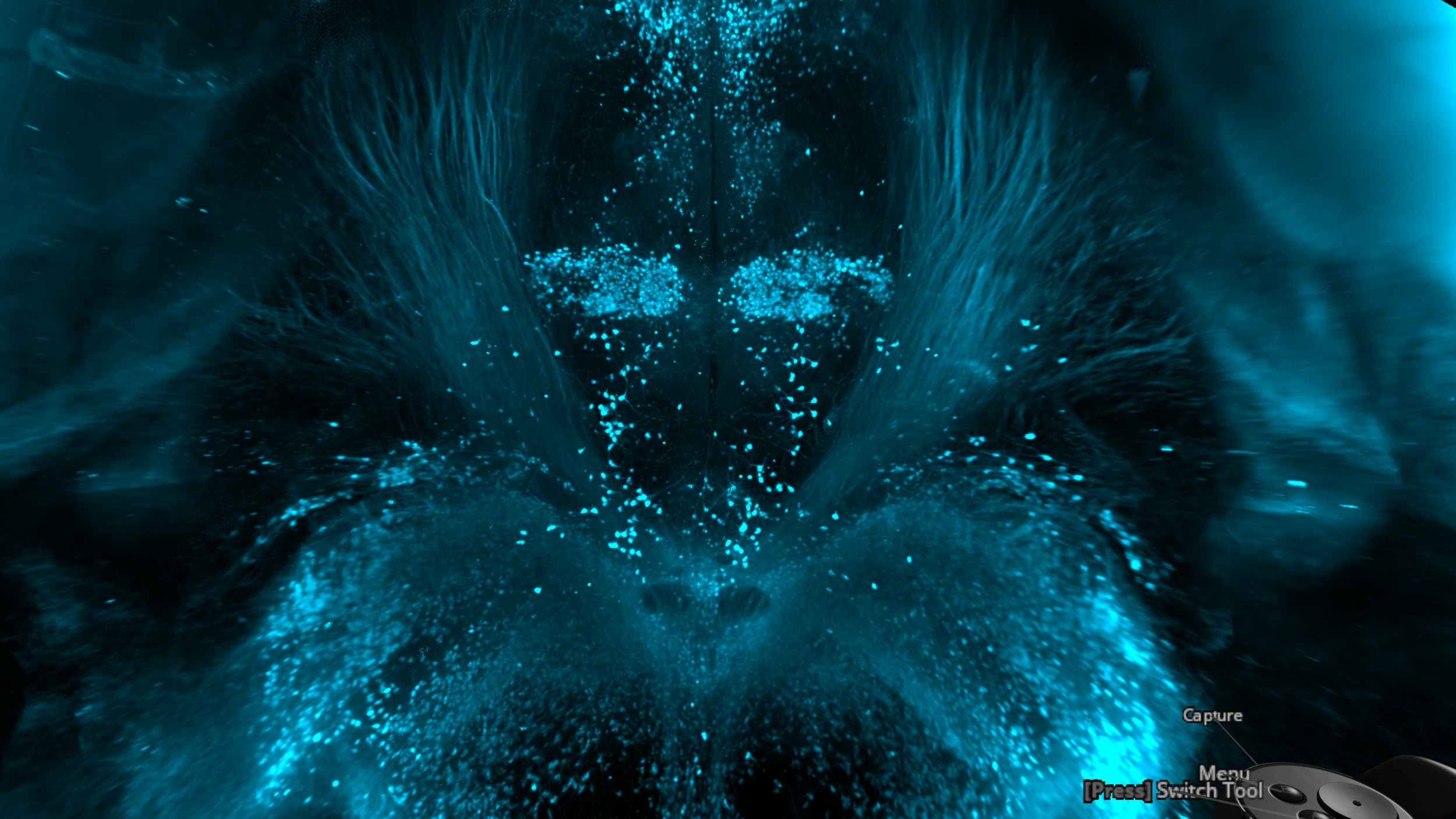
syGlass + Spatial Reality Display
Experience the power of syGlass rendering on Sony’s ELF-SR2 Spatial Reality Display (SRD)
Stereoscopic 3D at a Glance
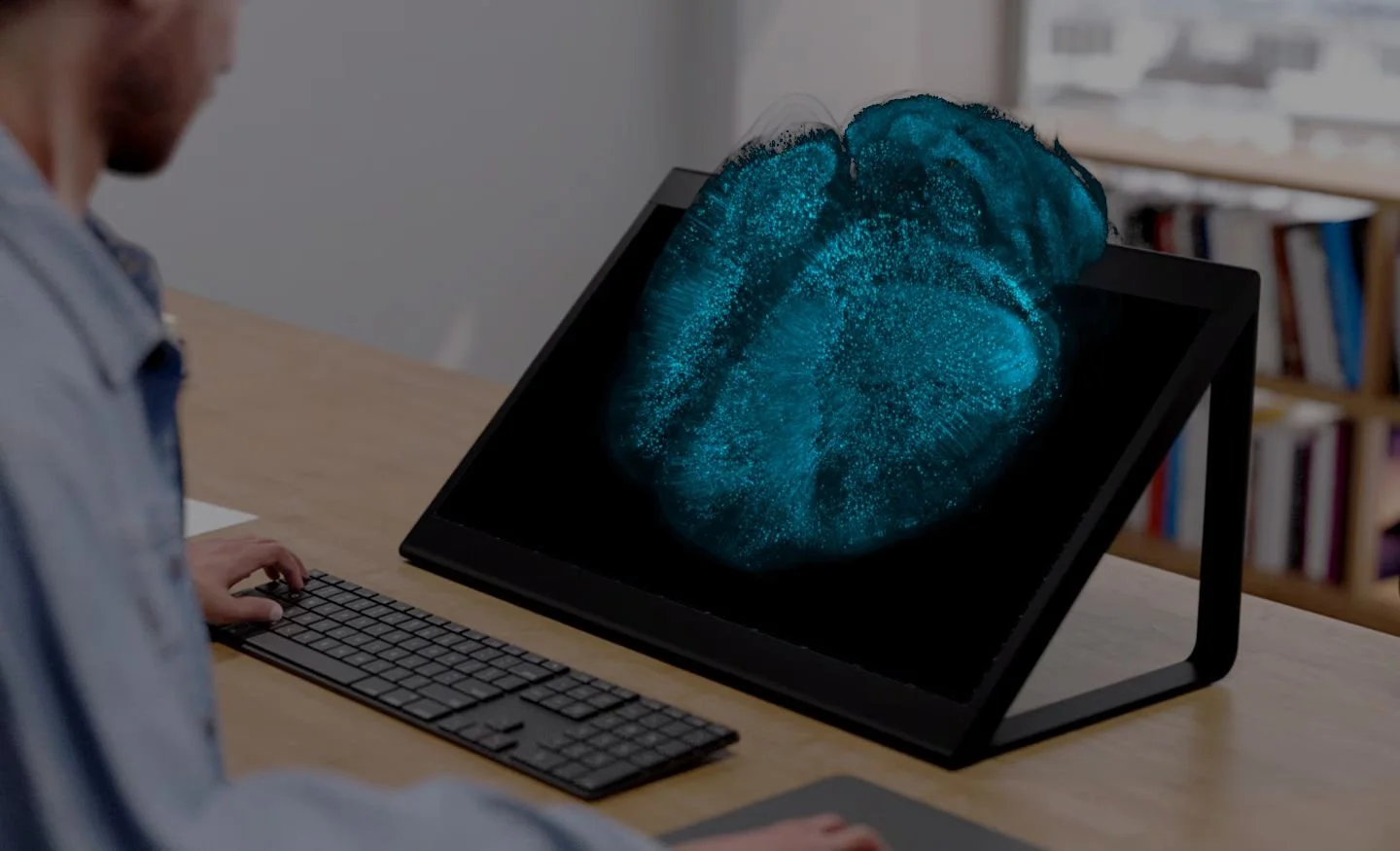
Understanding the complex spatial relationships between biological structures is critical in both scientific research and in education. syGlass has long allowed for viewing of 3D images in stereoscopic VR, making these relationships faster and easier to digest. Now, through a collaboration with Sony XYN, syGlass can provide completely glasses-free 3D visualization, delivered via the Sony ELF-SR2 Spatial Reality Display.
syGlass and Sony’s Spatial Reality Display are not medical devices and are to be used for research and educational purposes only.
Why Spatial Reality?
Setting Up syGlass + Spatial Reality Display
Install both syGlass and the Sony SRD software.*
Attach both the USB and HDMI cables between the SRD and your PC.
Use the Windows display settings to extend your display, making the SRD the secondary display.
Configure the SRD as desired using the Spatial Reality Display Settings app; both high image quality and high performance modes are supported, but the latter is recommended for most hardware.
Launch syGlass and modify the settings for wall-mount and clipping mode in Settings > Sony SRD Mode as desired.
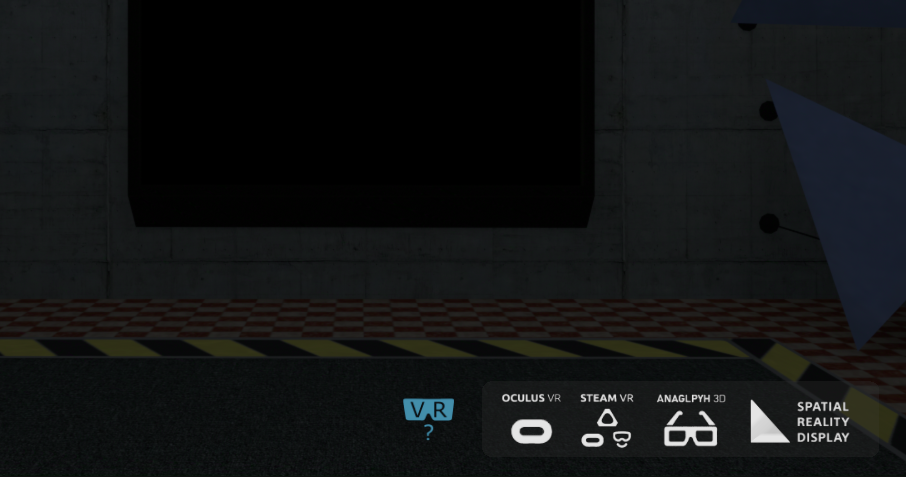
Press the VR On/Off button and then the Spatial Reality Display button in the bottom-right corner of the render window to activate SRD mode.
Use the syGlass mouse and keyboard controls as usual on the SRD.
*PC Required. Minimum System Requirements for Sony Spatial Reality Display: Intel Core i5 or Equivalent CPU, NVIDIA GeForce RTX 2070 SUPER or Equivalent Graphics Card, 16GB RAM, 128GB SSD, Windows 10/11 64-bit.